
How to Create a Free AWS Developer Account — Step-by-Step Guide
Are You a Python, Java, NodeJS developer and want to extend Your skillset with Cloud development? Here is a simple step-by-step guide how to create and set up your Free AWS Developer Account in few minutes.
Go and grab a coffee/tea…
Are You ready?
Let’s dive in.
Step 1. Sign Up for Free AWS Developer account
First things first, let’s sign up for a Free AWS Developer account.
Go to https://aws.amazon.com/ and click on the  button on the right top.
Then fill the form with your account details:
- valid email address (you will need to activate your account and you will also receive important emails from AWS so make sure you have access to the email you register with!)
- secure, strong password (see the password rules in the hint, it might be different when you sign up so always check the actual ones in your browser!)
- AWS Account name: give a name to your new account, choose a name you can easily remember, refer to
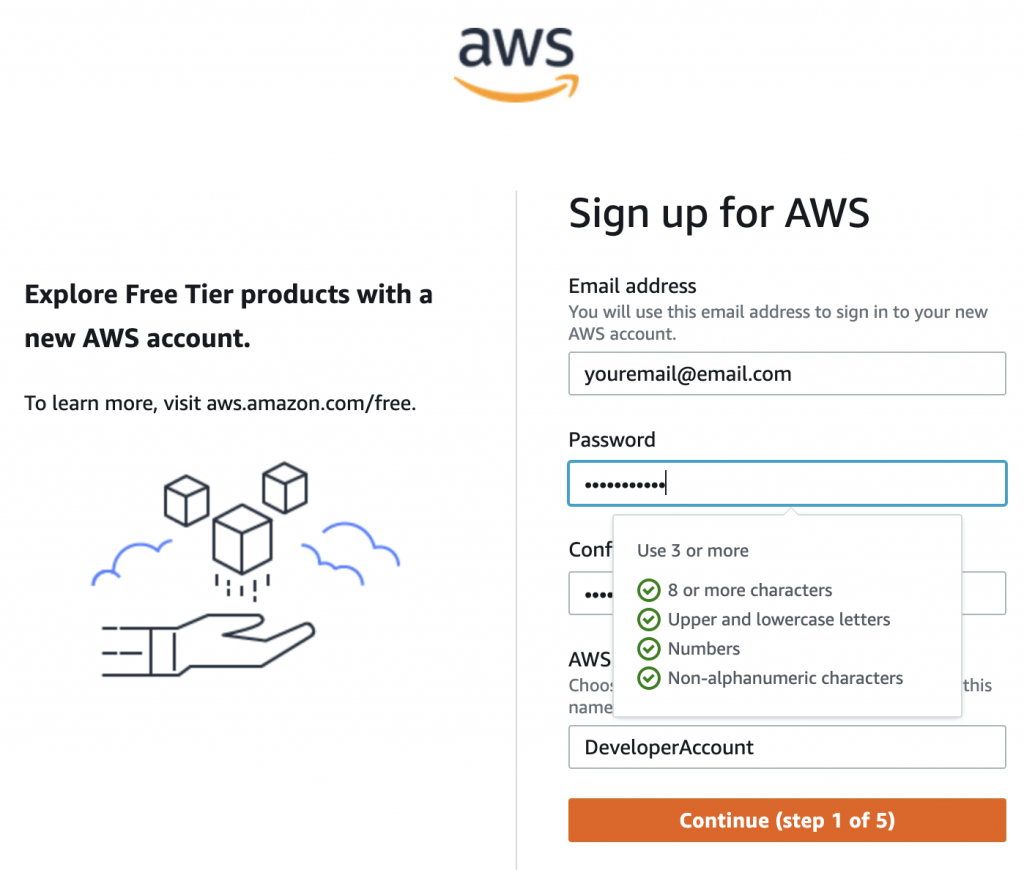
Then Click on Continue
Step 2. Provide your Contact Information
Fill the form with your contact details:
- Your Full Name
- valid Phone Number (include your country code too! You will receive important text messages (SMS) from AWS so make sure you have access to the phone number you register with)
- Address details:
- Country Code
- Address Line
- City
- State
- Post Code
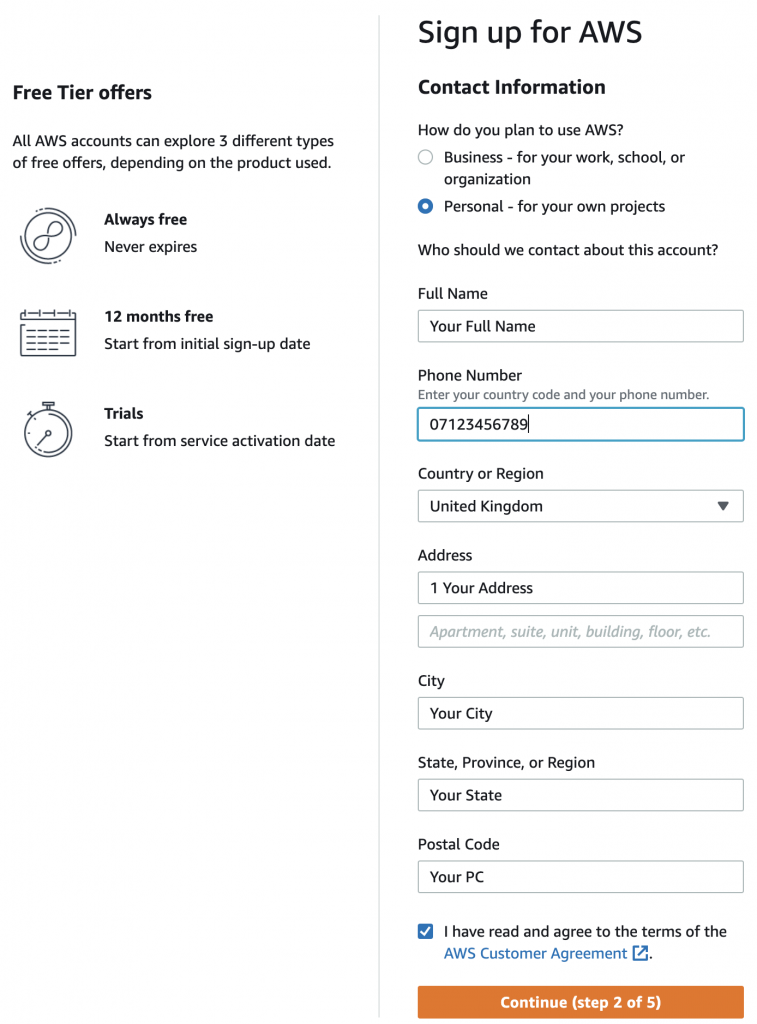
Note: Make sure you read the AWS Customer Agreement them tick the checkbox.
Then Click on Continue
Step 3. Provide your Billing Information
Why you need to provide your payment details if you sign up for a Free AWS account?
Great question…
AWS won’t charge below AWS Free Tier limits so if you stay below, you won’t pay for anything. As there is no way to stop you using their services, they just start charging above the limits. That’s why they need to check your payment method before giving you Free access. You can always check what is included into the Free Tier per service also your usage.
Pro Tip: You can keep your account Free by setting up an AWS Budget and let AWS notify you when you are reaching your Free Tier limits. After you completed the steps laid out in this guide, go and follow our AWS Budget set up guide!
Make sure there is at least 1$/1€ on your bank account because it will be checked during this step. No worries, your 1$/1€ will be released after 3-5 days.
Fill the form with your billing details:
- valid Credit or Debit card number
- Expiration date
- Cardholder’s name
- Billing address
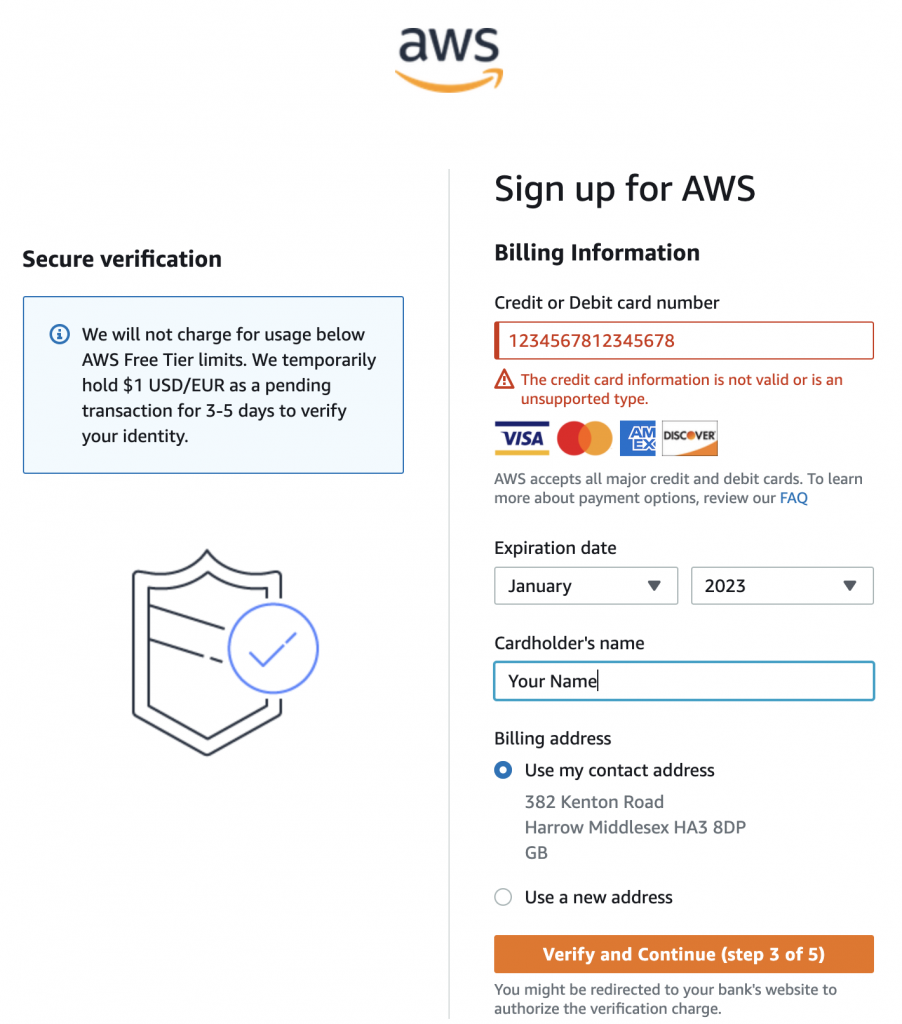
Then Click on Verify and Continue
Step 4. Confirm Your Identity
You can confirm your identity by receiving a verification code via Text message (SMS) or a Voice call.
- Choose the method: text message or voice call
- Select your country or region code
- Provider your Mobile phone number on which you will receive the verification code via the chosen method
- Type the Captcha in the Security check
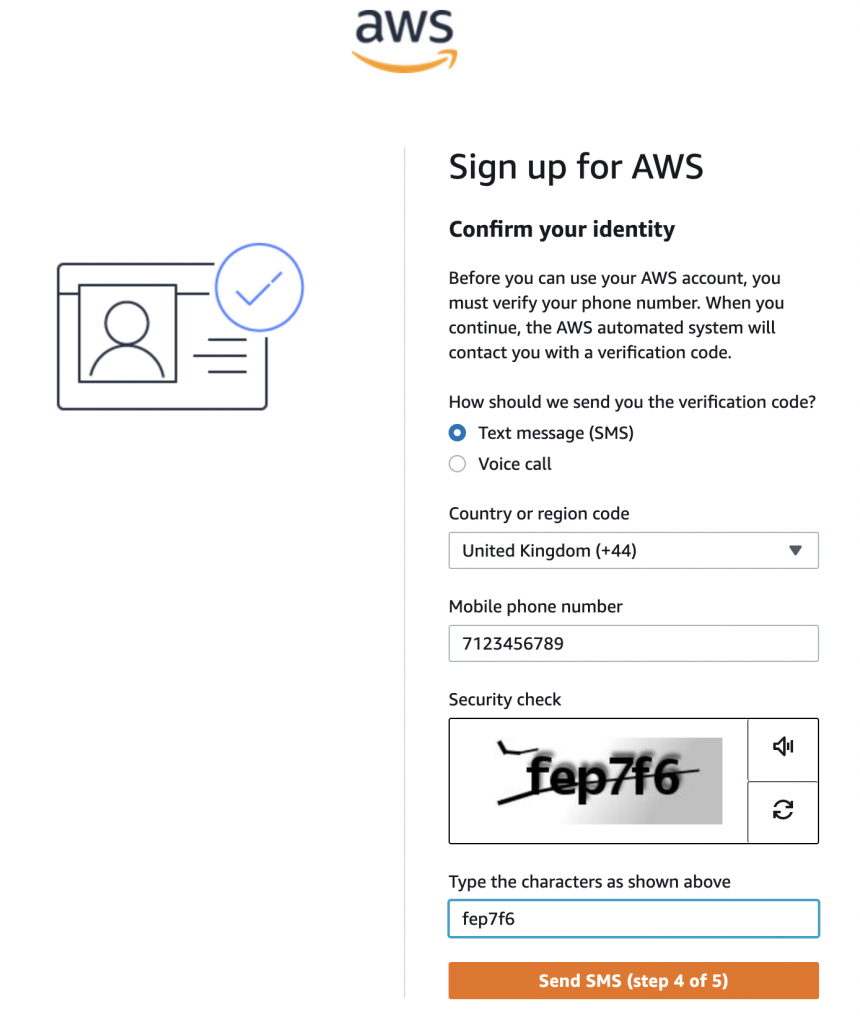
Then Click on Send SMS or Call me now then follow further instructions on the screen.
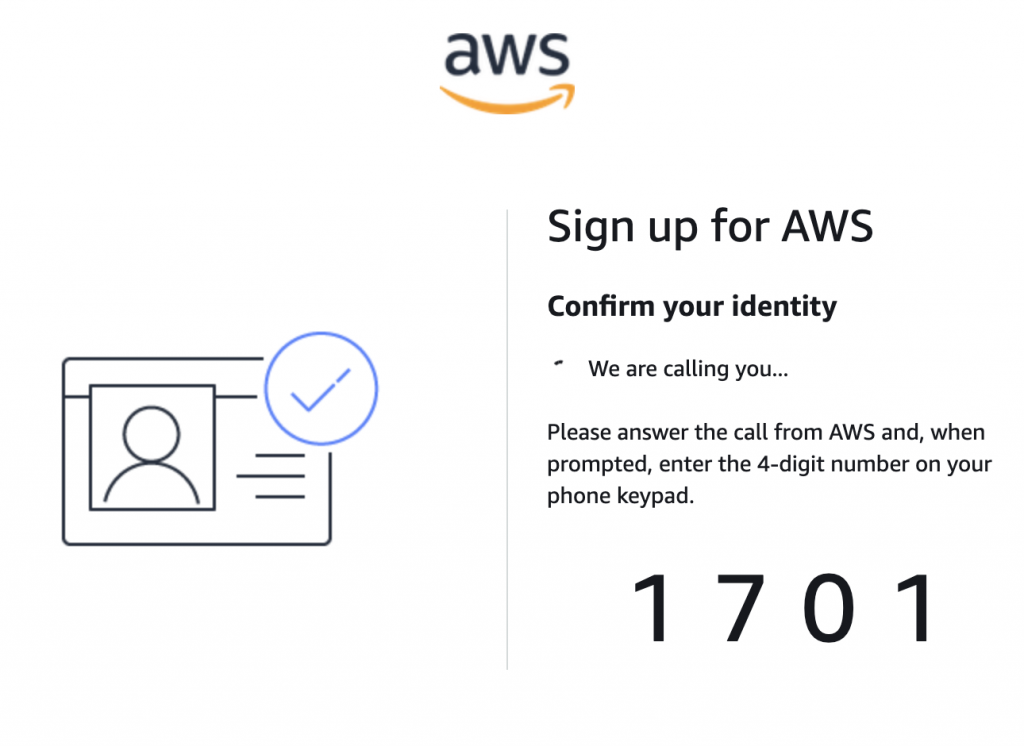
Step 5. Select Your Plan
There is 3 support plans you can select from:
- Basic support – Free: choose this to get Free access and when you don’t need extra support (there are plenty of free resources available so this plan should be enough for most developer)
- Developer support – From $29/month: if you need extra support choose this
- Business support – From $100/month: for businesses
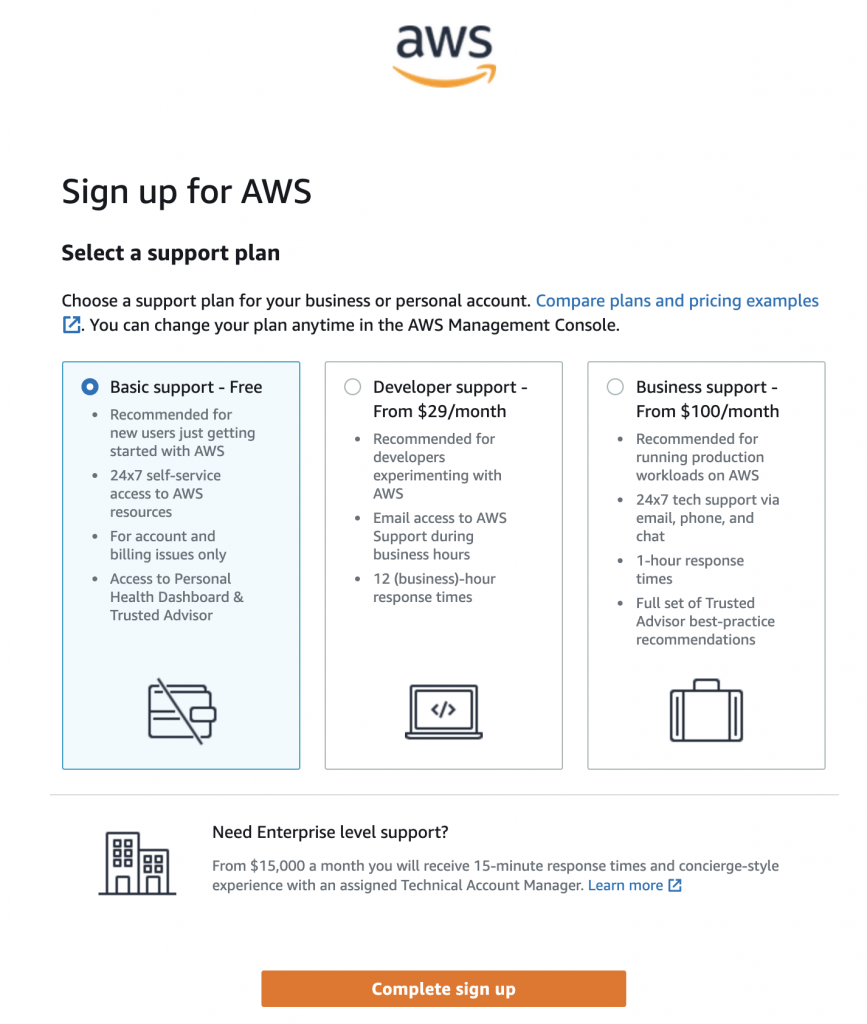
Then Click on Complete sign up
Wait until you will receive a confirmation email for your support plan.
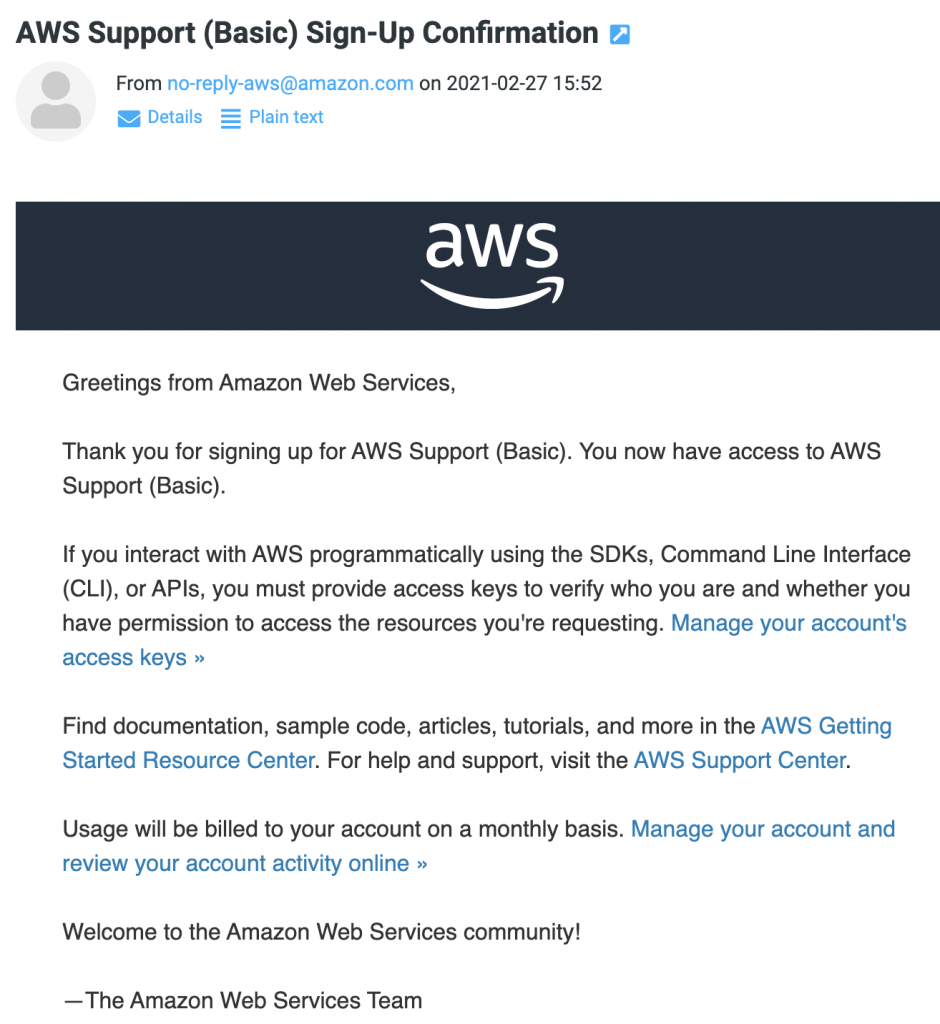
Step 6. Account Activation
Also wait for the email confirmation from AWS about your account is created.
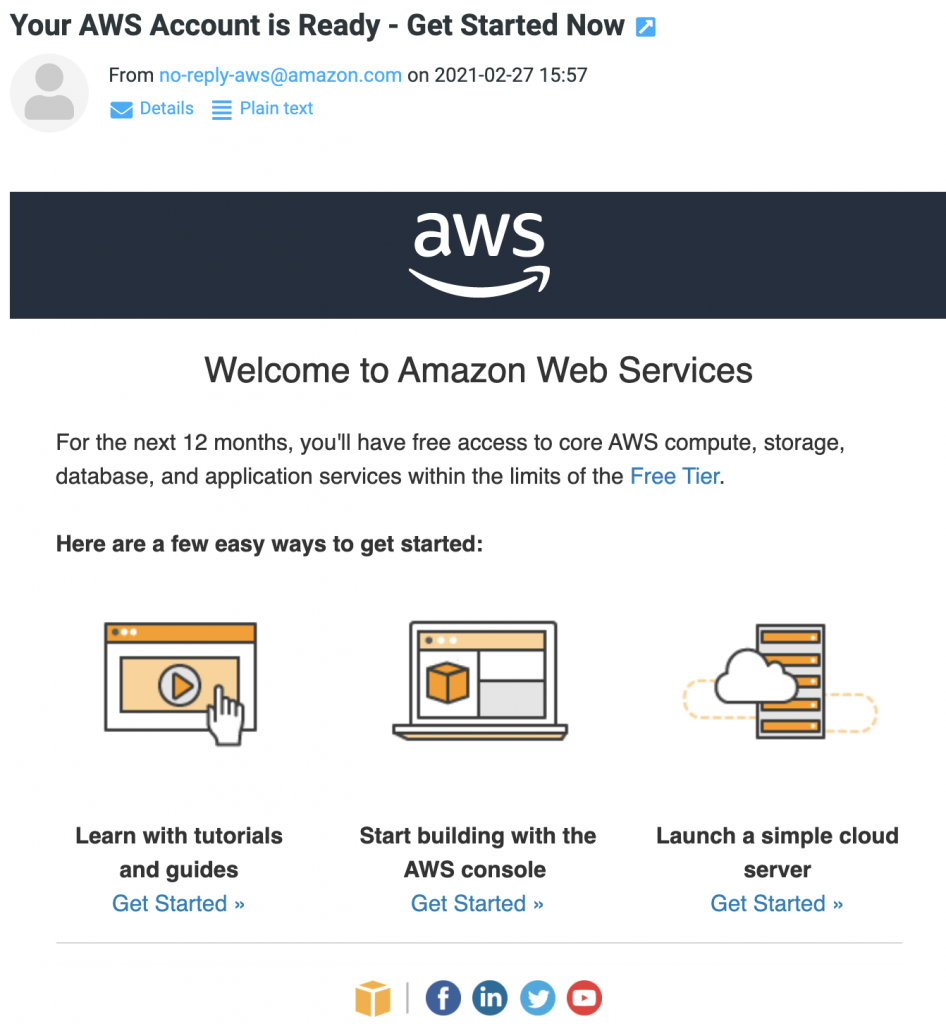
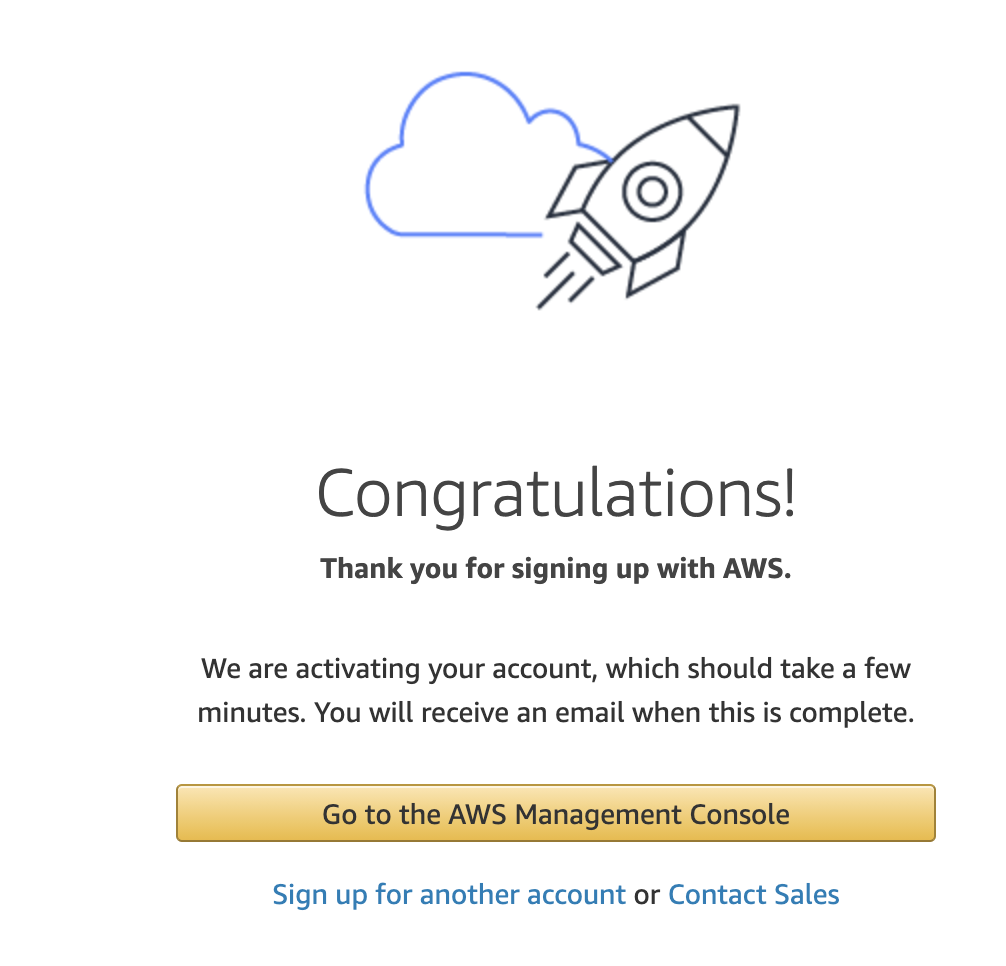
Then Click on Go to the AWS Management Console
Step 7. Free AWS Developer account created
Congratulation you’ve successfully completed how to create your Free AWS developer account.
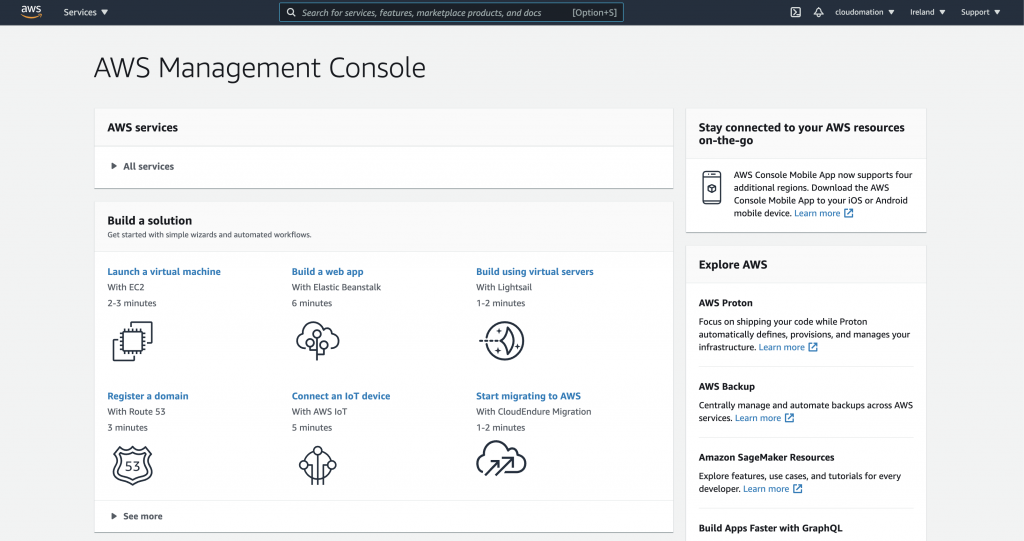
After successful login, you can view your Management Console and crack on playing with your fancy new AWS Developer account.
Let us know in a comment how you getting on or if you have any questions. We love to hear your success story as well 😊!
Welcome to amongst the millions of happy AWS Developers!
Next step is to Set Up Your AWS Developer Account Budget And Keep Account Free here.