How to Set Up an AWS Budget Alert and Stay on the Free Tier
Do you want to add AWS to your developer skillset and don’t want to spend money on it while you master the trade? Set up an AWS Budget and Keep Your AWS Account Free.
What happens if your usage is above the Free Tier limits?
AWS won’t charge below AWS Free Tier limits so if you stay below, you won’t pay for anything. As there is no way to stop you using their services, they just start charging above the limits. You can always check what is included into the Free Tier per service and you can also keep an eye on your AWS usage.
In order to keep your account Free, you can set up an AWS Budget which monitors your usage and notifies you immediately every time you reach your limits.
Set up your AWS Budget in few minutes and keep your AWS Account Free
Here is a simple step-by-step guide how to keep your AWS development account free by using AWS Budget.
Step 1. Go To AWS Budgets
Navigate to AWS Budgets in your AWS Console.
Select Your Account (the name of your account you provided when you created your account) then My Billing Dashboard.

Then select Budgets on the left hand side.
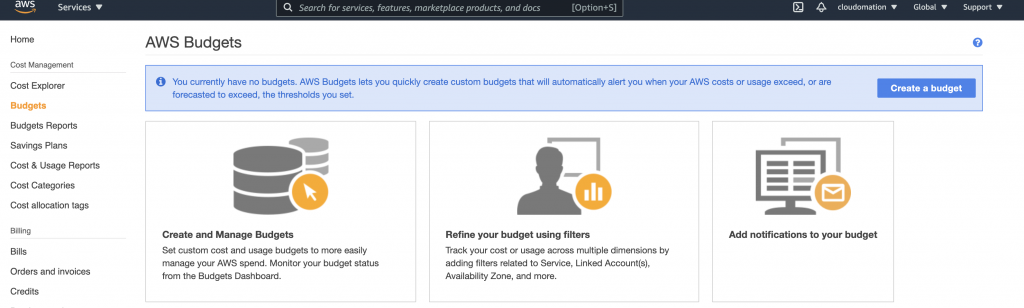
Finally, click on Create a budget!
Step 2. Set Your AWS Budget
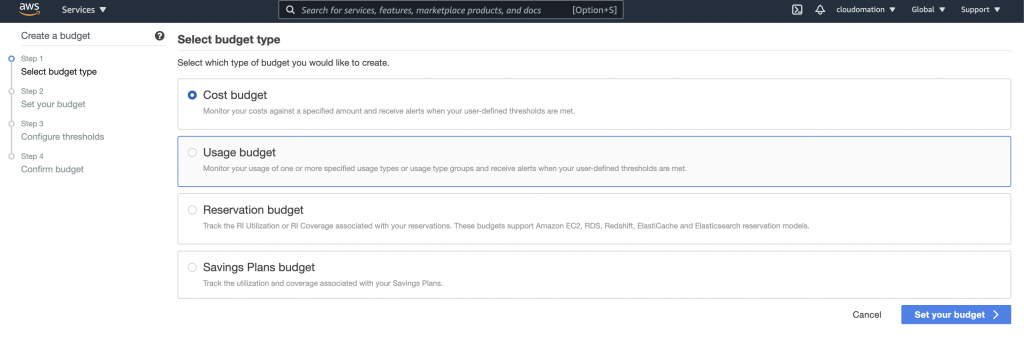
Select budget type!
There are different budget types you can select from depending on your requirements:
- Cost budget: Monitor your costs against a specified amount and receive alerts when your user-defined thresholds are met. We will select Cost budget for now.
- Usage budget: Monitor your usage of one or more specified usage types or usage type groups and receive alerts when your user-defined thresholds are met.
- Reservation budget: Track the RI Utilization or RI Coverage associated with your reservations.
- Savings Plans budget: Track the utilization and coverage associated with your Savings Plans.
Select Cost budget for now then click on Set your budget.
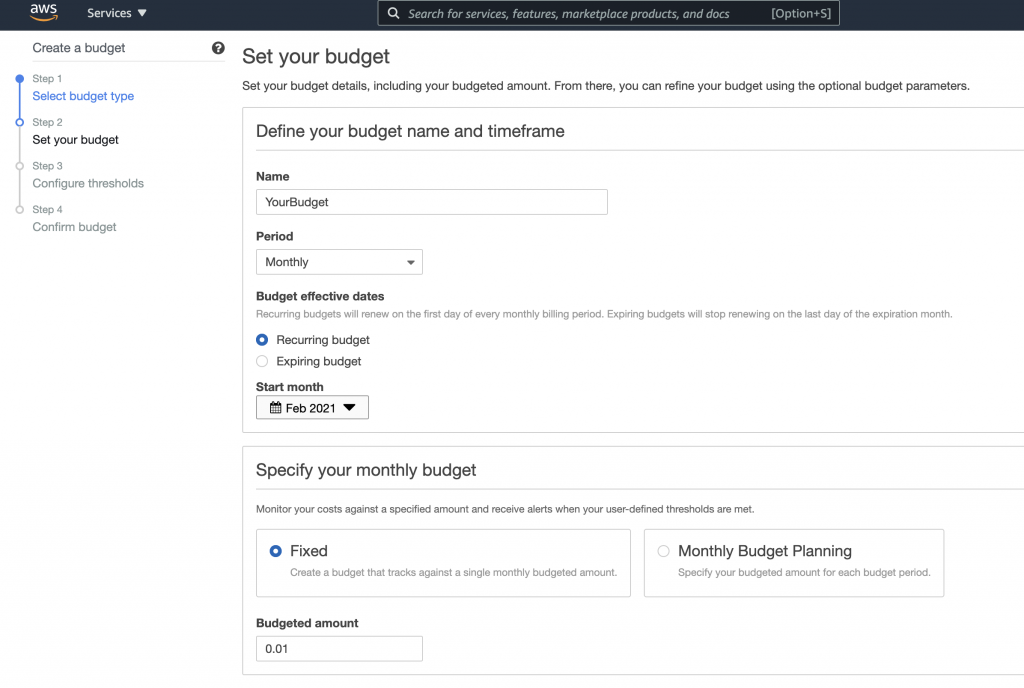
Fill the form based on your needs.
- name: give a name to your budget. Example: learning AWS
- period: monthly
- budget effective dates: recurring budget
- monthly budget: fixed
- budgeted amount: 0.01 so AWS will send you a notification immediately you spend $0.01.
- Leave everything else as it is.
Click on Configure alerts!
Step 3. Configure AWS Budget Alerts
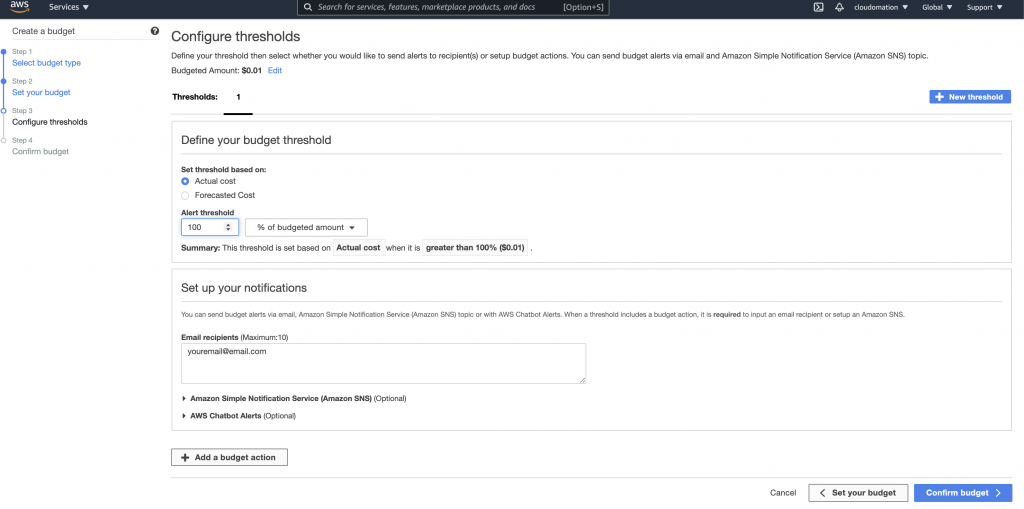
Configure the budget notifications. Every time you spend $0.01 you will receive a notification email from AWS Budget then you can react and stop using services you are overusing.
- Set threshold based on: actual cost.
- Alert threshold: 100 % of budgeted amount.
- Email recipients: your email address(es) you want to receive the notifications.
Then click on Confirm budget.
Step 4. Confirm AWS Budget
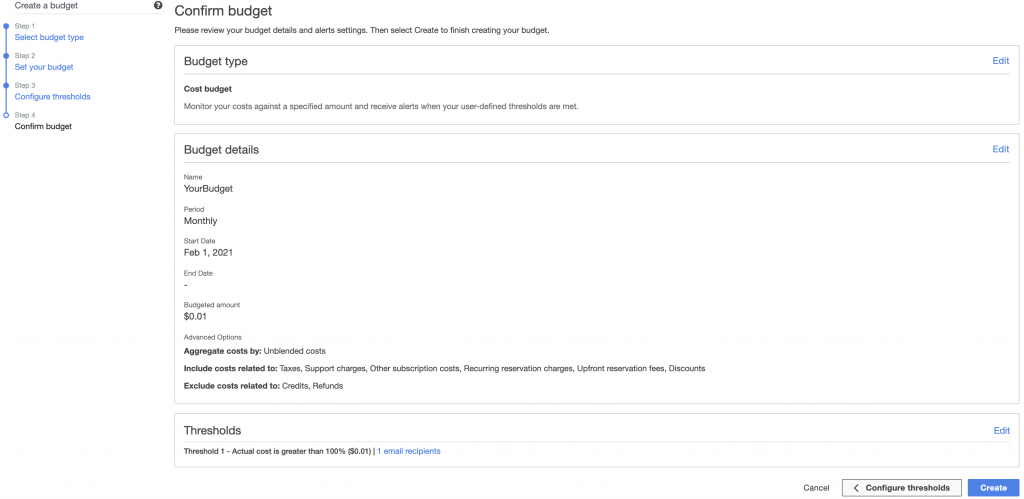
Last step is to review and confirm you budget.
Click on Create if you are happy with your budget setting.
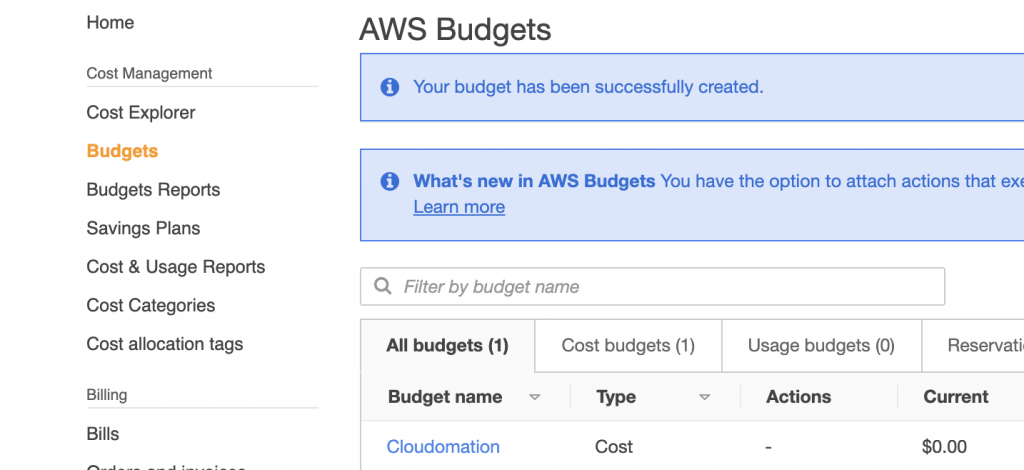
Step 5. AWS Budget created
Congratulation, you have successfully created and set up you AWS Budget and keep your AWS Developer Account Free.
You can see your AWS Budget under Cost Management -> Budgets in your AWS Console.