
AWS IAM: How to Keep Your AWS Developer Account Secure
Safe and secure AWS developer account is the first most important thing you as a developer must care about.
Not-managing your AWS Developer account security carefully can cause serious damage and cost a fortune.
Giving too much privileges to users or storing credentials in front of public eyes can easily give the opportunity to anyone to access your account and compromise.
The first service you need to master as a developer in AWS
AWS Identity and Access Management (AIM) is the focal point of security in AWS. It enables you as a developer to secure your application following the best practices.
In this article, you will learn the basics of AWS IAM and the best practices to manage your AWS account safely.
After you are familiar in the basics, you can follow the step-by-step guide here to apply the best practices and secure your AWS developer account before you start using any other service.
Ready to dive in?
AWS IAM in a nutshell for developers
AWS IAM is a global AWS service therefore it is available in each AWS Region. It enables you to manage access to AWS services and resources securely. Using IAM, you can create and manage AWS users and groups, and use permissions to allow and deny their access to AWS resources.
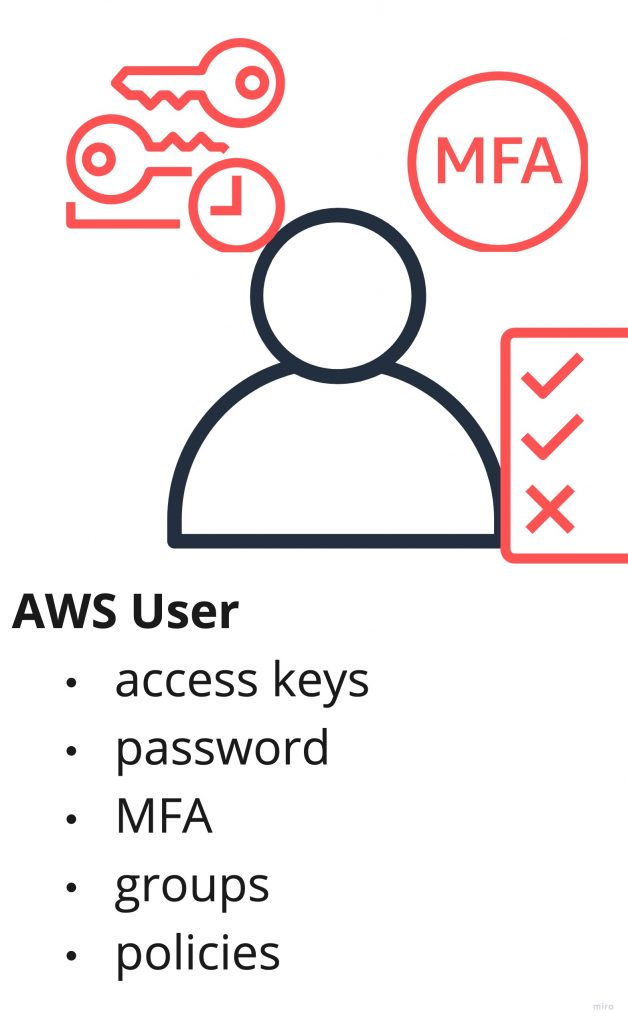
Users
An AWS User is someone who has an identity and can access to your AWS Account. Usually a physical person behind a keyboard.
You can create users in IAM, assign them individual security credentials, or request temporary security credentials to provide users access to AWS services and resources.
You can manage permissions in order to control which operations a user can perform on a specific service.
Best practices:
- Create only one IAM User per physical person.
- Never share your credentials. Some organisation use shared AWS users, don’t no that.
- Never, ever write your credentials in your code and never commit it to your Source Control.
- Follow all the security credentials best practices below.
- Assign users to groups (see below) and never manage individual user privileges.
Security credentials
Access Key
Access key ID and secret access key provide programmatic access to your AWS account. You can use them to send request from AWS Command Line Interface (AWS CLI) or from your application. As a developer this is your most important access to your account.
Access Key can be a two edged sword as most of the times are hidden in your application configuration.
Best practices:
- Never create Access Key to your Root user, create your own user and create access key to that user. Root user has full access to all AWS services, configuration. Anyone can easily cause harm to you with them.
- Use rotating Access Key. You can setup your Access key to be rotated. Even if it is compromised, it won’t work forever.
- Give Access Key access just for users who really needs it. Developers, testers most likely need it but not product people.
- Never store Access Key in source files. As a developer it is very easy just to setup your application to use your access key then keep it like that forever. It works perfectly so why to change it? Bad idea. Don’t add your Access Key to text files and just store it in your source control system. Use only just from your local development environment.
Passwords
Each user requires a password. Use strong password and always lock down and never share your passwords.
Best practices:
- Create strong password policy which forces users to have strong password like at least 8 characters length, contains 2 digits, 2 upper case, 2 lower case letters, 1 special character etc.
- Force password rotation so users need to change their passwords regularly for example in every 90 days.
Multi Factor Authentication (MFA)
Username and password are basic credentials. Even having strong password policy and password rotation enforced, having access to the actual password can cause serious harm.
AWS IAM provides Multi Factor Authentication as a higher level security to your users. Users have a device that generates a response to an authentication challenge. Beside username and password, the user need to provide the device generated response as well to complete the sign in process successfully.
Best practices:
- Setup your MFA in your Password Manager Tool like 1Password so you can access it from multiple devices and locked in your trusted password manager.
But frankly, managing user permissions when you have many users can be a nightmare and a tedious job.
That’s why AWS provides a higher level of abstraction to manage Group permissions and just assign your users to Groups.
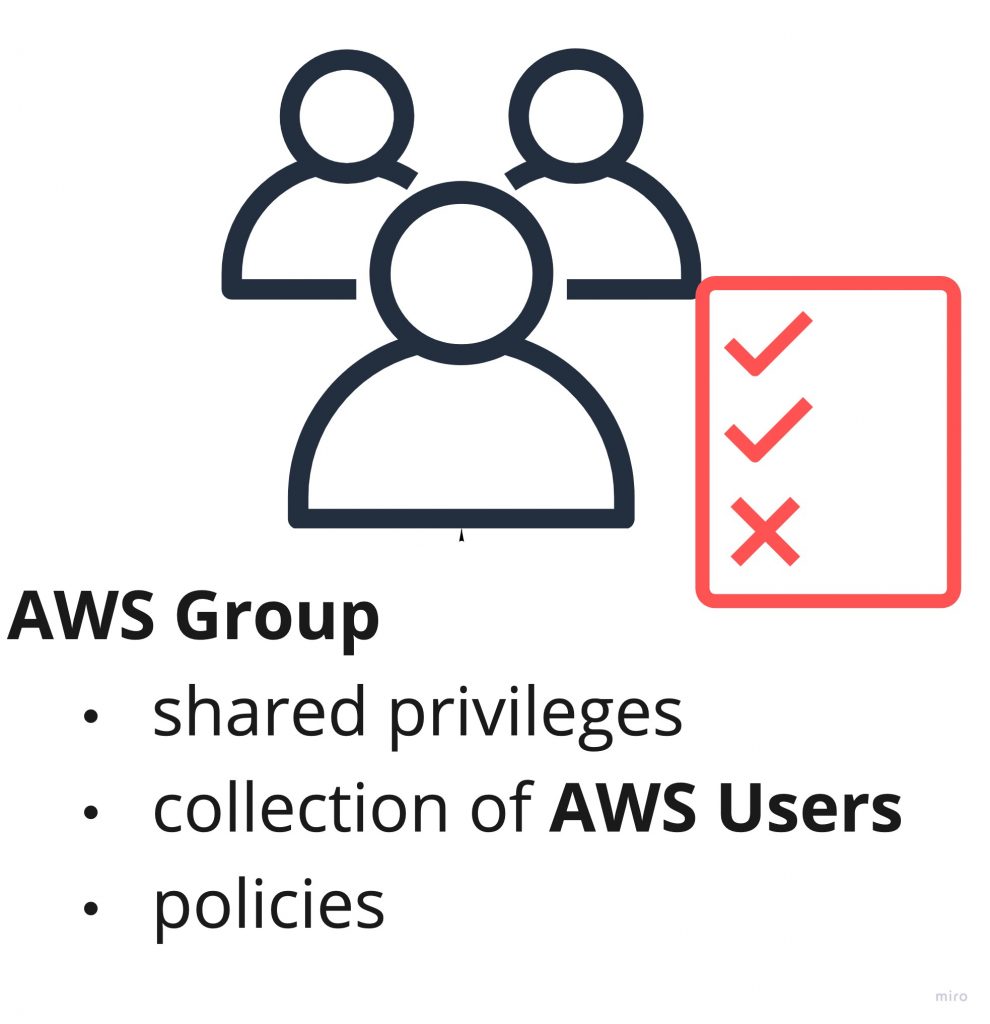
Groups
An AWS Group is the best way to define common, shared privileges on different levels and assign them to users. So you manage the privileges of multiple users simultaneously.
You can create groups by functions (admin, dev, qa etc.) or teams (engineering, design etc).
If a new user joins your organization and should have administrator privileges, you can assign the appropriate permissions by adding the user to that group.
Similarly, if a person changes jobs in your organization, instead of editing that user’s permissions, you can remove him or her from the old group and add him or her to the new group.
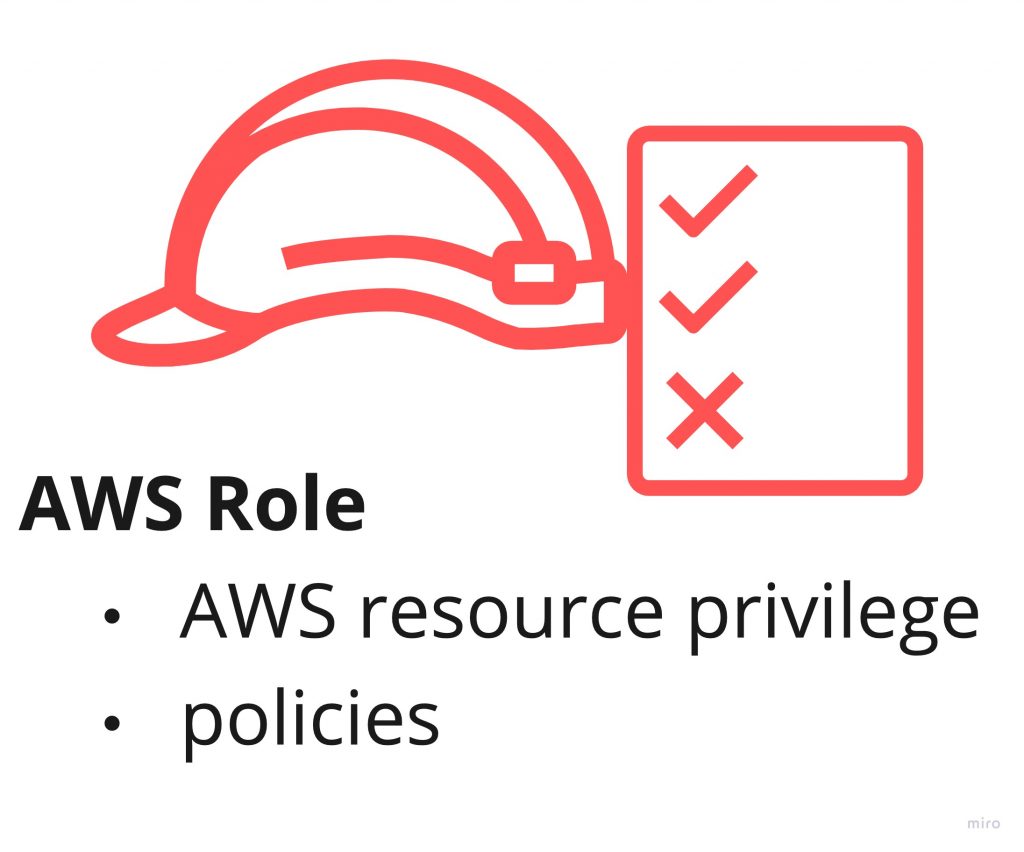
Roles
An AWS Role is for internal usage within AWS Resources. The way to assign privileges to machines, services.
You can create roles in IAM and manage permissions to control which operations can be performed by the AWS service, that assumes the role.
You can also define which entity is allowed to assume the role. In addition, you can use service-linked roles to delegate permissions to AWS services that create and manage AWS resources on your behalf.
Best practices:
- Create only one IAM Role per Application and never share.
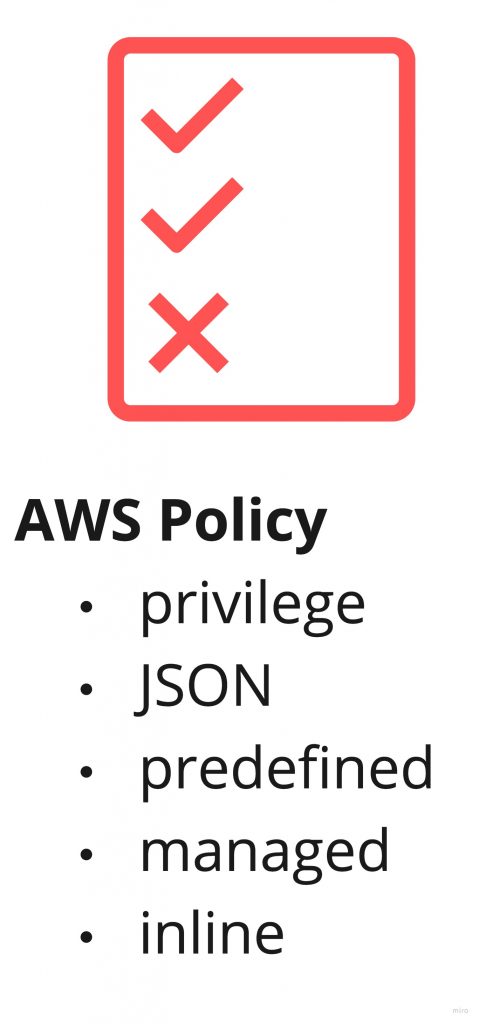
Policies
Policies are JSON (JavaScript Object Notation) data which defines the privileges of the IAM entity (User, Group or Role) it attached to.
There are predefined managed policies or you can have your own custom policies. Predefined polices come handy at the beginning while you play and learn in your AWS Developer account as you can easily give access to a new AWS service, you are learning, to your user by attaching a predefined managed policy for that service.
You can create inline policies as well. It is very hard to find and manage them. Always prefer managed or custom policies instead.
Best practices:
- Always keep yourself to the Least Privilege Principle which means always give the minimum permission to users, groups or roles that they definitely need to be able to complete their task.
- Prefer managed or custom policies to inline policies.
IAM Federations
Enterprises usually have already got a solution they manage their users before they migrate to the cloud.
IAM Federations provide a solution to integrate with existing user management tools like Active Directory using the SAML protocol. This is not part of this tutorial as you don’t need it as a learner. But definitely check it out if you need to work with IAM at work.